MQTT Client Manual: Brokers, Topics, Sparkplug B
On this page
AnyAutomation Studio connects to MQTT brokers in the same editor as your PLCs. PLC / OPC UA / MQTT holds your OPC UA, S7 and MQTT connections side by side as connection tabs, so a broker and a PLC are one click apart. On an MQTT tab you subscribe to topic filters, browse the topics that arrive in a tree, read every message as text, JSON, hex or Sparkplug B, publish your own messages and delete retained ones. Topics and Sparkplug B metrics go into the watch table, the Data Logger and Trace like the variables of a PLC.
License requirement: The MQTT client is included from the Pro plan when you operate it yourself. The MQTT tools in the AI chat, which let the assistant work on your broker, belong to the Pro+ plan (see MQTT Tools in the AI Chat). The free trial unlocks both.
For OPC UA servers and S7 controllers in the same editor, see PLC / OPC UA / MQTT.
Overview
MQTT is a publish and subscribe protocol. A broker passes messages between its clients: a client publishes a message to a topic, for example MixingPlant/MIX01/temperature, and every client that subscribed to a matching topic filter receives it. A broker can also keep the last message of a topic as a retained message and hand it to every client that subscribes later.
Studio is such a client. It shows what the broker delivers for the topic filters you subscribe to, and it publishes the messages you send. It never subscribes on its own: a topic that none of your subscriptions covers stays out of view until you subscribe to it. Studio works with MQTT 3.1.1 and 5.0 brokers, over a plain connection or over TLS.
An MQTT tab shows the topics in the side bar, the watch table in the centre, the message panel on the right and the Message Log, Subscriptions and Sparkplug tabs at the bottom.
Connecting to a Broker
- Open PLC / OPC UA / MQTT from the Activity Bar (or
Ctrl+K Ctrl+G). - In the connection header choose MQTT under Protocol. The header shows the fields of a broker.
- Under Broker, enter the host name or IP address of the broker, for example
192.168.0.1. Leave the port empty for the default port 1883, or 8883 when TLS is ticked. You can also paste a whole address such asmqtt://192.168.0.1:1883,mqtts://broker.example.com:8883or192.168.0.1:1883; Studio splits it into the fields when you leave the field. - Client ID is filled with a generated ID. Generate a New Client ID (the refresh button) makes a new one, and an empty field lets the connection generate one. Two tabs cannot use the same client ID on the same broker: the second one is refused with a notice.
- Under Authentication, enter the user name and password of the broker if it needs a sign-in. These are the credentials of the broker, separate from the sign-in of an S7 controller. The password is not shown again after the connect.
- Click Connect, or press Enter in a field of the form.
The expander Session, Last Will and TLS Options holds the less common settings:
- Session: the MQTT Version (3.1.1 or 5.0), Keep-alive (s) (empty means 60 seconds), Clean session (called Clean start with 5.0) and, with 5.0, Session expiry (s). A session the broker keeps for you, with Clean session off, needs a fixed client ID, and with 5.0 a session expiry above 0.
- Last Will: tick Send a Last Will and enter the topic, the message, the QoS and Retain. The broker publishes this message for Studio when the connection breaks off without a regular disconnect.
- TLS: the certificate settings, see TLS and Broker Certificates.
Studio checks every field before it connects. A message names the field that needs a change and moves the focus there, and opens the expander when the field is inside it.
While the tab is connected, the status dot, the reconnecting banner, Reconnect and Disconnect work as on OPC UA and S7 tabs. The Connection Settings menu (the gear in the connection header) of a connected MQTT tab offers Enable Logging, Do Not Persist Connection and Save Broker Profile. Recent… in the header fills the broker fields from an earlier MQTT connection, with its saved profile when exactly one profile has that broker.
Broker Profiles
A broker profile keeps everything you need to connect to a broker again with one click: the broker address and port, TLS, the client ID, the MQTT version, keep-alive, the session settings, the Last Will, the TLS files and the user name, and on request the password.
- Profile is the first row of the broker form. It lists New Profile and your saved profiles; choosing a profile fills the form.
- Save Broker Profile saves the form. With New Profile selected, Studio asks for a name; with a saved profile selected, it updates that profile.
- Rename Broker Profile asks for the new name.
- Delete Broker Profile asks for confirmation and also removes the passwords saved with the profile. Open connections and saved connections to the same broker keep their own.
When you connect with a profile that has a user name and leave the password empty, Studio uses the password saved with the profile, for that user name only. A tab that connected with a profile shows the profile again.
To save a profile after you connected, choose Save Broker Profile in the Connection Settings menu, because the form is hidden while the tab is connected. The profile keeps the password the tab connected with, as long as the broker and the user name are those of the tab. With a user name but no password, Studio asks Save the broker profile without a password? and saves with Save Without Password.
TLS and Broker Certificates
Tick TLS in the Broker row to encrypt the connection. The TLS part of Session, Last Will and TLS Options then shows:
- CA File: the certificate of the authority that issued the broker certificate. Leave it empty to check the broker against the Windows certificate store.
- Client Certificate: your own certificate, when the broker asks for one, as a PFX, P12, PEM, CRT, CER or DER file. For a PEM certificate, also choose the Private Key. Enter the Certificate Password when the key is protected.
- Check the broker certificate: on by default. When you switch it off, a warning reminds you that any server can then pose as the broker.
On the first connect to a broker whose certificate Studio cannot confirm, the prompt The broker certificate is not trusted yet. shows the broker address, the subject, the issuer, the validity, the serial number and the SHA-256 fingerprint of the certificate, and names the reason, for example a host name that does not match, a wrong CA file or an authority Windows does not trust. Compare the fingerprint with the one your broker administrator gives you, then click Trust Broker Certificate. Studio remembers the certificate for this broker and connects again; from then on it accepts exactly this certificate for this broker, without the CA check.
When the broker later presents another certificate, the prompt The broker certificate has changed. shows the trusted and the presented fingerprint. A renewed certificate is a normal reason, another server answering at the same address is not, so check with the administrator before you click Trust New Certificate. A broker that presents no certificate at all is refused with The broker did not present a certificate. Every decision, also a cancel, is written to the certificate log.
Subscriptions
The Subscriptions tab at the bottom lists the topic filters of the tab. A filter can hold wildcards: + stands for exactly one level and # for every level below, for example MixingPlant/# for everything of the plant or MixingPlant/+/temperature for the temperature of every unit.
To add a filter, type it in Topic filter, choose the QoS (0, 1 or 2, default 0) and click Add or press Enter. The field checks the filter as you type. Each row shows the requested and the granted QoS and the state: Active, Pending, Refused with the reason of the broker, or Inactive. Remove ends a subscription, and Change QoS changes its QoS. Adding a filter the tab already has with another QoS also changes its QoS. A refusal affects only its own row.
A tab holds at most 16 subscriptions. Shared subscriptions are not supported. The filters are saved with the tab and subscribed again after a reconnect and when Studio restores the tab. On a persistent session, a subscription also changes what the broker keeps for your client.
On an MQTT 3.1.1 broker, a message that matches two of your filters arrives twice, and the topic tree and the Message Log count it twice. Studio warns about such an overlap while you type, and the row keeps a warning icon.
You can also subscribe from the topic tree with Subscribe to This Branch, and from the empty topic tree with Subscribe to All Topics (the filter # at QoS 0) or Add Subscription. On a busy broker, prefer narrow filters to #.
The Topic Tree
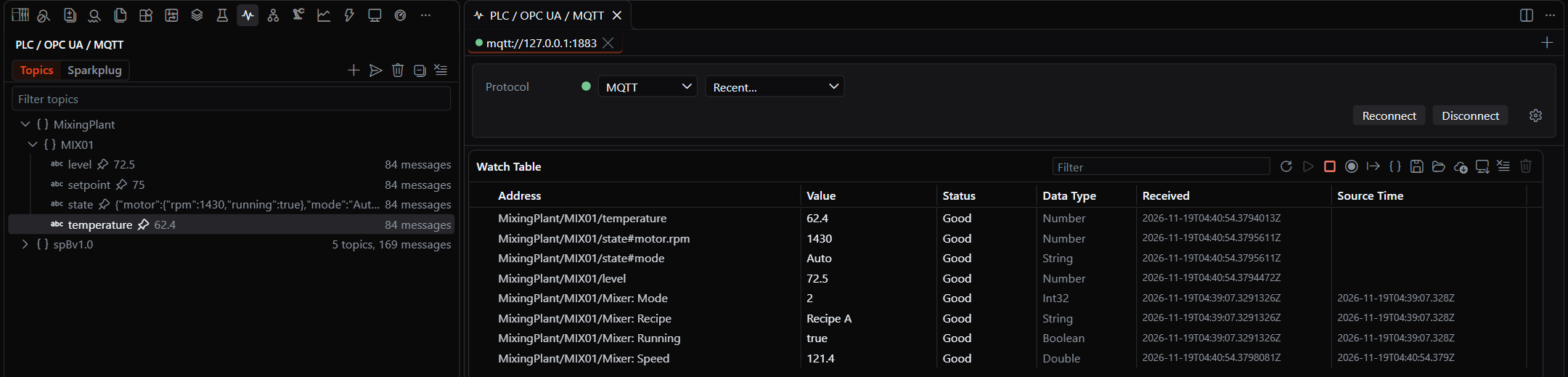
On an MQTT tab the side bar of PLC / OPC UA / MQTT shows Topics in place of the address space. The tree grows from the messages that arrive: the topic MixingPlant/MIX01/temperature becomes the levels MixingPlant, MIX01 and temperature. Each row shows its level, a retained badge when the broker delivered the message as retained, a one-line preview of the last message and the number of messages, for example "12 messages" on a topic and "3 topics, 40 messages" on a collapsed branch. A row that changes lights up briefly, except when your system asks for reduced motion. An empty level between two slashes shows as "(empty level)".
The toolbar of the region offers Add Subscription, Publish Message (prefilled with the selected topic), Delete Retained Message (for a retained selected topic), Collapse All and Clear View. Clear View forgets the topics, their histories and the incoming entries of the Message Log in Studio; your outgoing entries stay, and nothing on the broker changes. Filter topics finds topics by their path or their preview; Esc clears the filter.
The context menu of a topic offers Copy Topic, Add to Watch, Publish to Topic..., Subscribe to This Branch (MixingPlant/MIX01/# on a branch, the topic itself on a single topic), Delete Retained Message, Delete Retained Messages Below... and Clear from View. Ctrl+C copies the selected topic, and Delete on a retained topic starts its delete.
When messages are lost on the way, a banner above the tree says how many: messages dropped by the rate limit of the connection, new topics dropped by the topic limit of a subscription, topics that did not fit because the tree is full (at 20000 topics), or messages the view could not keep up with.
The Message Panel
Select a topic, and the message panel on the right shows its last message. The header carries the topic with Copy Topic, the format switch Auto, Text, JSON and Hex (plus Sparkplug on a Sparkplug B topic), Publish to Topic... and Delete Retained Message. Below it, a line names the QoS, whether the message was delivered as retained, the time it was received (local time with milliseconds) and its size, and on MQTT 5.0 also the content type and a table of the user properties.
Auto shows a message as formatted JSON when it is valid JSON, as text when it is text and otherwise as hex. The body is read-only text you can select; Copy Value copies the whole message. Hex shows offset, bytes and characters in pages of 64 KiB, with Show More for the next page. The format you choose is remembered for the topic while Studio runs.
Below the body, the history lists the last 50 messages of the topic, newest first, with time, the gap to the previous message, size, QoS and the retained badge. Select an earlier message to look at it; the panel shows "Showing an earlier message." and keeps it until you click Show Latest.
A message longer than the limit of the connection arrives cut, and the panel says how many bytes it shows. Of a very long message, Studio keeps only the start to save memory; Load Full Message reads it again from the broker as long as the broker still holds it. Toggle Right Panel hides the message panel on an MQTT tab and shows it again.
The Message Log
The Message Log tab at the bottom lists every message of the tab, incoming and outgoing: time, direction (In or Out, with an AI badge on the messages the assistant sent), topic, QoS, retained, size, a preview and, for outgoing messages, the outcome (Delivered or Refused with the reason).
- Filter by topic takes a topic filter such as
MixingPlant/+/temperature, or any part of a topic. - Pause stops new incoming entries from showing and counts them, Resume shows them again.
- Clear removes the incoming entries. Your outgoing entries stay as the record of what you changed on the broker.
Click an entry to select its topic. The log follows new entries while it is scrolled to the end; scroll up to keep the entries on screen in place. It holds up to 10000 entries per tab.
Publishing Messages
Click Publish Message in the toolbar of the topic tree, choose Publish to Topic... on a topic, a watch row or in the message panel, or run Publish Message... in the Command Palette. The dialog offers:
- Topic: the topic to publish to, without wildcards.
- Payload format: Text, JSON (with Format JSON and a check that the payload is valid JSON) or Hex (pairs of hex digits, spaces allowed).
- Payload: the message. Load from File... loads a file of up to 4 MiB as the payload.
- QoS: 0, 1 or 2, default 0.
- Retain: the broker keeps the message and sends it to every new subscriber.
- Content type and User properties (up to 32), on an MQTT 5.0 broker only.
- Recent: the last 10 messages you published on this tab, to send one again.
Click Publish or press Ctrl+Enter. When the broker refuses the message, the dialog stays open with the reason. Every message you publish appears as an Out entry in the Message Log.
A retained publish with an empty payload deletes the retained message of the topic: the dialog then asks the same confirmation as Delete Retained Message and publishes nothing else.
The dialog warns, without refusing anything, when a message could confuse Sparkplug B devices: a payload typed for a Sparkplug B command topic (use Send Command... instead, see Sending Sparkplug Commands), Retain on a Sparkplug B topic, and any message to a Sparkplug B STATE topic.
Deleting Retained Messages
Delete Retained Message on a retained topic asks "Delete the retained message of ...?" and, after Delete, removes the message from the broker, so new subscribers no longer receive it. The topic loses its retained badge and keeps its history; a topic that held only the retained message leaves the tree.
Delete Retained Messages Below... on a branch deletes the retained messages of every topic below it that the tree shows as retained. A run deletes up to 1000 topics in a progress notification you can cancel, and ends with a summary of what was deleted and what failed. The broker can hold more retained topics than this tab has received, so topics no subscription of the tab covers stay untouched.
The confirmation warns when a Sparkplug B STATE topic is among the topics, because edge nodes read a removed STATE message as their primary host application going offline.
Watching Topics
The watch table of an MQTT tab shows the value of a topic, or of one field of its JSON message, and updates with every message your subscriptions deliver.
- Add to Watch on a topic of the tree opens a list: Whole Payload, the JSON paths of the last message (for example
motor.rpmorvalues.0), or Enter JSON Path... for a path of your own. - Add to Watch on a branch adds every topic below it that has a message, each as a whole payload row, up to the free entries of the table.
- Add Topic to Watch... in the Command Palette adds the topic selected in the tree.
- Drag a topic or a branch from the tree onto the watch table.
On an MQTT tab the timestamp columns read Received (when Studio received the message) and Source Time (the time a Sparkplug B metric carries, see below). The Interval (ms) box is hidden, because values arrive with the messages. Subscribe and Stop switch the live updates on and off.
A row whose topic none of your subscriptions covers shows the status UncertainNotSubscribed. Subscribe to Topic in its row menu subscribes to exactly that topic, which counts toward the 16 subscriptions of the tab. Refresh Values reads such topics once from the broker, one at a time and up to 50 per run, in a progress notification you can cancel; rows a subscription covers keep their live value.
The rows are read-only. To send a new value, choose Publish to Topic... in the row menu: the publish dialog opens with the topic and the last text. The row menu also offers Show in Topic Tree, Load Full Message for a value that was cut to save memory, and Copy Topic.
The Status column shows a stable token, for example Good, UncertainNoMessageYet, UncertainEmptyMessage for an empty message or BadNotJson when a JSON path is set but the message is not JSON. Hover the status to read what it means.
Files and Data Logger
Export CSV, Export JSON, Save Table, Load Table, Import CSV and Import JSON work on an MQTT tab as on the other protocols. A file of MQTT rows loads only on an MQTT tab, and rows of an OPC UA or S7 file are refused there with a message.
The Data Logger button writes every message of the watched rows to a CSV file, also a message that repeats the value. The file has the columns LocalTime, ReceivedTimestamp, SourceTimestamp, Item, DisplayName, Value, Status and StatusCode. Item holds the topic and its JSON path, for example MixingPlant/MIX01/state#motor.rpm, or the name of a Sparkplug B metric. An empty message writes a line with the status UncertainEmptyMessage, and a lost connection writes one line with UncertainConnectionInterrupted per row. The logger stops when the tab disconnects or closes and when you stop the live updates.
Tracing MQTT Topics
Trace records MQTT topics next to PLC signals. A connected MQTT tab appears in the connection list of Trace as MQTT with its broker.
- Browse MQTT Topics (the browse button of an MQTT connection) opens Select Signals with the topic tree of the tab. Pick topics that have a message; for a single topic you then choose the whole payload or a JSON path.
- In the + Signal form of an MQTT connection, the field reads Topic: type a topic to add its whole payload.
- Drag topics from the topic tree of the MQTT tab onto the Trace page.
Trace draws a JSON number, a JSON boolean, the text true or false (as 1 or 0) and a payload that is a plain number; anything else is drawn as a gap. MQTT signals are drawn as steps. Trace samples every 100 ms at least, and the status line reads, for example, "Messages: sampled every 100 ms, local time": each sample holds the last message of every signal, and messages replaced within one sample count as lost samples.
A trace starts only when a subscription of the tab covers each of its topics; otherwise Trace names the topics to subscribe to. The recording ends when its MQTT tab disconnects or closes; with Auto-Reconnect on, it waits for the connection instead.
The Sparkplug B View
Sparkplug B is a specification for MQTT in industrial plants. Edge nodes and their devices announce their metrics in a birth certificate with names, data types and short aliases, then send only changed values, and report going offline with a death certificate. All of this runs under topics that start with spBv1.0/.
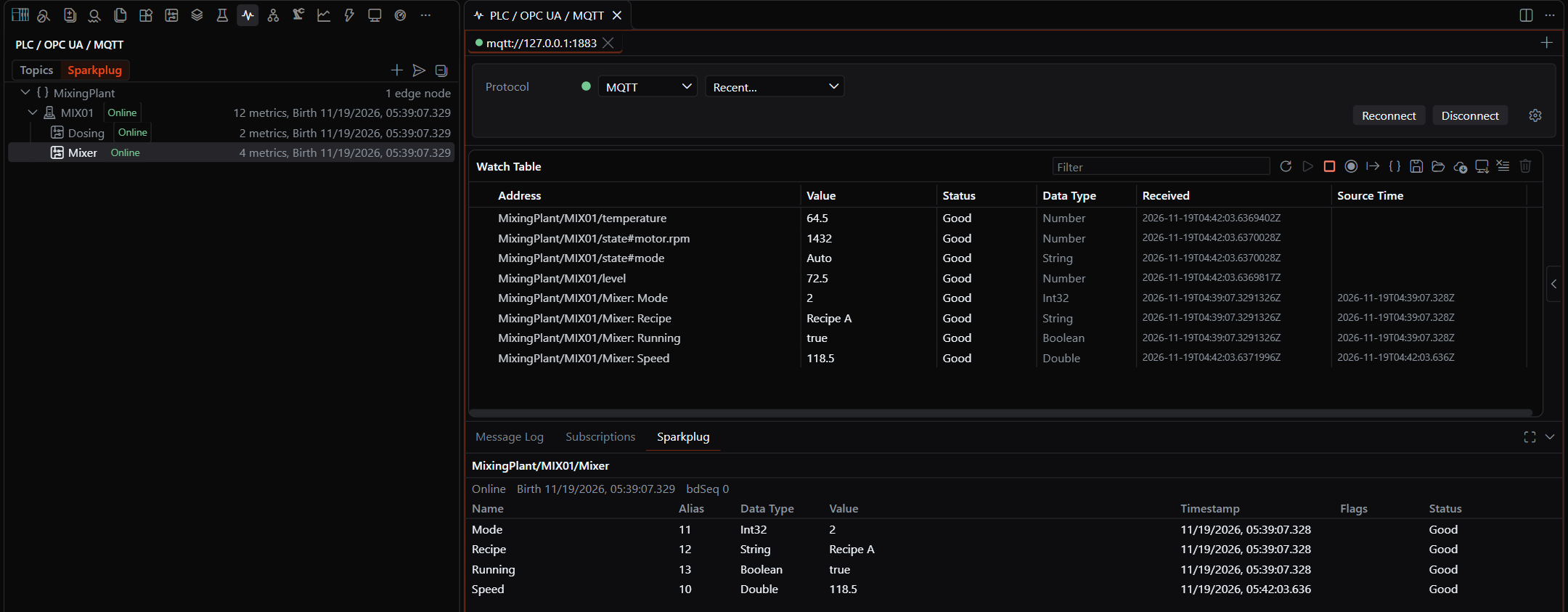
Switch the title of the topic region from Topics to Sparkplug to see the plant instead of the raw topics. Show Sparkplug View in the Command Palette does the same and opens the Sparkplug tab at the bottom. The tree lists:
- Host Applications, when a host application announced its state, each with Online, Offline or Unknown.
- The groups, for example
MixingPlant, with their edge nodes, for exampleMIX01, and their devices, for exampleMixerandDosing. - For an edge node a state badge (Online, Offline, No Birth Seen or Interrupted), the messages it missed since its current birth, its number of metrics and the time of its birth. For a device Online, Offline or Waiting for Birth.
The context menu of an edge node or a device offers Show Metrics, Subscribe to Edge Node (spBv1.0/MixingPlant/+/MIX01/#), Subscribe to Group (spBv1.0/MixingPlant/#), Show Raw Topics, Add All Metrics to Watch, Send Command..., Request Rebirth... and Copy Name. With no Sparkplug B data yet, the view offers Subscribe to All Sparkplug Topics (the filter spBv1.0/# at QoS 0).
The Sparkplug tab at the bottom lists the metrics of the selected edge node or device: Name, Alias, Data Type, Value, Timestamp, Flags (Null, Transient, Not in Birth) and Status. Its header names the state, the time of the birth, the session counter bdSeq and the last command seen. A banner tells you when something needs attention, for example when no subscription covers all topics of the edge node, when no birth certificate has arrived yet, or when messages were missed, with buttons such as Subscribe to Edge Node, Subscribe to Group and Request Rebirth.
In the message panel, a Sparkplug B message shows in the Sparkplug format as a table of its metrics, with the names from the birth certificate, for example "Temp (alias 1)" for a metric sent by alias. Copy Value copies the decoded message as JSON. The topic tree and the Message Log show such a message as a one-line summary, for example "NDATA, seq 12, 3 metrics".
Birth certificates are not retained. An edge node that came online before your subscription shows no birth and no metric names until it sends its birth again: subscribe first, then request a rebirth. Studio watches the plant: it never takes the role of the host application and never sends a state, a rebirth or a command on its own. Studio follows Sparkplug 3.0 and also reads the messages of Sparkplug 2.2 devices.
Sending Sparkplug Commands
Send Command... writes new values to the metrics of an edge node or a device. Open it from the Sparkplug tree, from the row menu of a metric in the Sparkplug tab, from the row menu of a Sparkplug B watch row, or with Send Sparkplug Command... in the Command Palette.
The dialog names the edge node or device and its state, and says "Commands are sent with QoS 0 and without retain." Under Metrics, choose a Metric from the writable metrics of the current birth certificate, type the New value and click Add Metric for the next one, up to 32 metrics. Below each row the dialog shows the data type and the current value. A value is a whole number, a number such as 21.5, true or false, a text, or a date and time in ISO 8601 form or as milliseconds since 1970. Click Send or press Ctrl+Enter.
A command goes only to an edge node or device that is online with a current birth certificate. When a new birth certificate arrives while the dialog is open, the first Send is refused so you can check the values again. A metric under Node Control, such as a reboot, asks once more before it is sent. The session counter bdSeq of an edge node cannot be written, because the edge node sets it itself for each connection. A sent command appears as an Out entry in the Message Log.
Requesting a Rebirth
Request Rebirth... asks an edge node to send its birth certificate again, and the birth certificate of each of its devices, so the tab learns all metric names and aliases. Choose it in the Sparkplug tree, in the Sparkplug tab, in the banner or with Request Sparkplug Rebirth... in the Command Palette. A confirmation explains what happens first. On a device, the rebirth goes to its edge node. Studio never requests a rebirth on its own.
Sparkplug Metrics in Watch, Logger and Trace
Sparkplug B metrics go into the watch table, the Data Logger and Trace like topics:
- Add to Watch, Add All Metrics to Watch and Add to Trace in the row menu of a metric in the Sparkplug tab, or drag metrics onto the watch table.
- Add All Metrics to Watch in the context menu of an edge node or device in the Sparkplug tree.
- Add to Watch on a Sparkplug B topic of the topic tree lists the metrics of the current birth certificate next to Whole Payload.
A metric row is named after its source, for example MixingPlant/MIX01/Mixer: speed, and shows its value, its Sparkplug data type, the Received time and the Source Time the metric carries. It keeps its value through a rebirth with new aliases. After a death certificate the status reads UncertainNodeOffline, and after a missed message UncertainSequenceGap. Its row menu offers Show in Sparkplug View, Subscribe to Edge Node (while no subscription covers it), Send Command..., Request Rebirth... and Copy Name. Refresh Values does not read metric rows, because the broker keeps no message for a single metric.
The Data Logger writes a line for each message that carries the metric. Trace draws the number of the metric (a Boolean as 1 or 0) and keeps its last value through a missed message; when the edge node or device goes offline, the curve of that signal shows a gap until a new birth certificate brings a value again.
Commands
The MQTT commands are listed under PLC / OPC UA / MQTT in the Command Palette (Ctrl+Shift+P) and work on the active MQTT tab:
| Command | What it does |
|---|---|
| Publish Message... | Opens the publish dialog |
| Add Subscription... | Shows the Subscriptions tab and puts the focus in its filter field |
| Delete Retained Message | Deletes the retained message of the topic selected in the tree |
| Clear Topics and Message Log | Clears the topic tree and the incoming entries of the Message Log |
| Show Message Log | Shows the Message Log tab |
| Add Topic to Watch... | Adds the topic selected in the tree to the watch table |
| Show Sparkplug View | Switches the side bar to the Sparkplug view and shows the Sparkplug tab |
| Send Sparkplug Command... | Opens the command dialog for the selected edge node or device, or asks which one |
| Request Sparkplug Rebirth... | Requests a rebirth of the selected edge node, or asks which one |
MQTT Tools in the AI Chat (Pro+)
The MQTT tools ship with Studio and are available to the built-in AI chat directly. You switch them on in the chat tool picker, where they form the group mqtt. The assistant works in the same PLC / OPC UA / MQTT you see: a connection it opens appears as an MQTT tab, the subscriptions it adds appear in the Subscriptions tab, the rows it adds land in your watch table, and the messages it sends appear in the Message Log with the AI badge.
The MQTT tools need the Pro+ plan; the free trial unlocks them. With the Pro plan you operate the MQTT client yourself, and the chat tool picker does not offer the tools. In the AI chat, choose the PLC / OPC UA / MQTT Operator in the agent picker, or simply ask the main agent.
| Area | What the assistant does |
|---|---|
| Connections | Lists your saved broker profiles and the open MQTT tabs, connects to a profile or a broker address in a tab you see, disconnects, and saves, renames or deletes a broker profile |
| Topics and messages | Lists the topics the tab received, reads a message as text, JSON, hex or Sparkplug B with its history, reads the last message of a single topic once, also of a topic no subscription covers, reads the Message Log, lists the subscriptions and your recent publishes, shows a topic or a panel, and pauses, resumes or clears the log and the topic view |
| Subscriptions | Adds and removes topic filters and changes their QoS |
| Publishing | Publishes one message, as text or binary, with QoS, retain and on MQTT 5.0 the content type and user properties |
| Retained messages | Deletes the retained message of a topic, or up to 100 retained messages below a branch per call |
| Watch table | Lists, fills, arranges and clears the watch table with topics, JSON paths and Sparkplug B metrics, starts and stops the live updates, refreshes uncovered topics, watches the table for a while and reports what changed, runs the Data Logger, and saves, loads, imports or exports the table |
| Trace | Adds topics and Sparkplug B metrics to Trace and starts a recording; everything else of the recording works with the trace tools |
| Sparkplug B | Lists the edge nodes, devices and host applications the tab has seen, reads the metrics of an edge node or device, shows one in the Sparkplug view, sends commands to edge nodes and devices and requests a rebirth |
Before the assistant connects or disconnects, changes a subscription or a broker profile, publishes a message, sends a Sparkplug B command or requests a rebirth, a confirmation card shows what will happen: for a message the topic, the QoS, the retain flag, the tab and a preview, for a command every metric with its new value. A delete of retained messages is confirmed on every call, also when you allowed the tool before. Starting the Data Logger and every file the assistant writes or loads are confirmed as well. To keep the assistant away from your brokers, choose Always Deny for the mqtt group in the Tool Approvals.
When the assistant reads a topic that no subscription covers, Studio subscribes to that one topic for a moment and ends the subscription again, as Refresh Values does. Passwords never pass through the chat: the assistant uses the password saved with a profile, or lets you type user name and password in a masked input. Trusting a broker certificate stays your decision in the connection header. The content of messages comes from other clients of the broker; the assistant treats it as data and never as instructions.
Example AI Chat usage:
- "Connect to the broker profile Mixing Plant and subscribe to MixingPlant/#"
- "Which topics changed in the last minute, and what is the last temperature of MIX01?"
- "Add the temperature and the motor speed of MIX01 to the watch table and log them to a CSV file"
- "Trace the speed metric of the Mixer device for two minutes"
- "Publish 21.5 to MixingPlant/MIX01/setpoint with QoS 1"
- "Request a rebirth of the edge node MIX01 and list its metrics"
Limits and Notes
- A tab holds up to 16 subscriptions. The topic tree holds up to 20000 topics, the history 50 messages per topic, the Message Log 10000 entries per tab and the watch table 5000 rows.
- A message you publish can be up to 4 MiB.
- The retained badge means that the broker delivered the message as retained. A retained message another client publishes while your tab is subscribed shows as a normal message until the next subscribe or reconnect.
- On an MQTT 5.0 broker that supports subscription identifiers, a message that matches two of your filters counts once.
- Studio connects over TCP, with or without TLS. Connections over WebSocket and shared subscriptions are not supported.
- Studio never publishes a Sparkplug B state message and never acts as the host application of a plant.