Import / Export
The Import / Export view is the heart of the TIA Portal integration. It opens in the Side Bar when you click the TIA Portal icon in the Activity Bar, just below the Project Explorer.
Layout
The Import / Export view stacks top-to-bottom in one Side Bar pane:
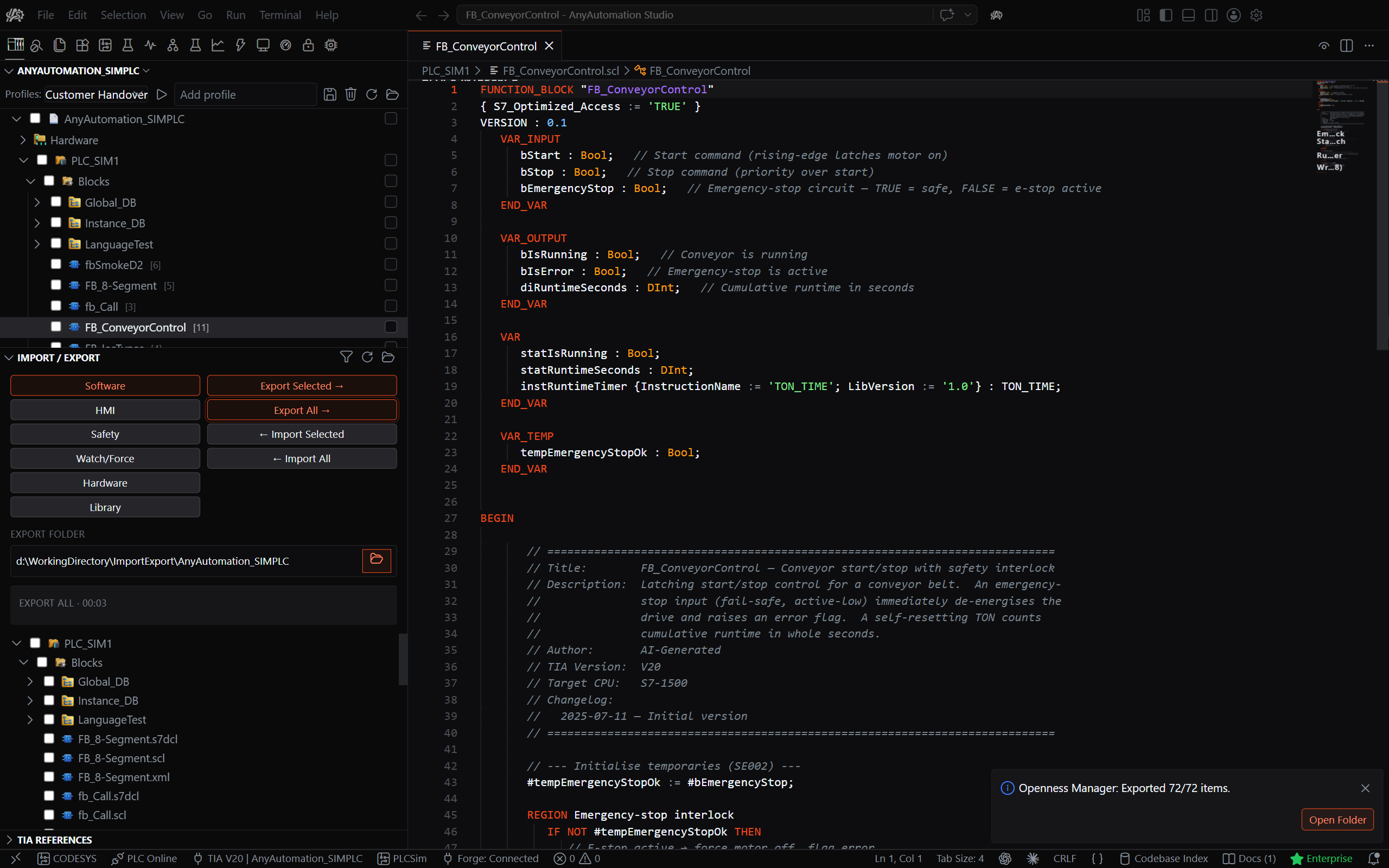
- Selection chips (left column): Software / HMI / Safety / Watch/Force / Hardware / Library. Click a chip to choose which category you are working with.
- Actions (right column): the buttons for the selected chip (for Software: Export Selected, Export All, Import Selected, Import All). The action set swaps when you pick a different chip. Action buttons are enabled only while a project is connected.
Export Folder
The Export Folder is the folder on your file system where exported files are stored and from which files are imported.
Setting:
- Click the folder button (📁) next to the EXPORT FOLDER path field.
- Select a folder.
- The path is shown in the field; until one is set the field reads
(not set — will prompt on export).
Tip: Use a Git repository folder so you can version-control your exports — open that folder in the Explorer to commit and review changes.
Note: The "Working Directory" in Settings refers to the "Find Unused Blocks" function and is a separate folder.
Export-folder tree
Below the path row, the rest of the pane is a live tree of the configured export folder, filtered to TIA source files (.xml / .scl / .awl / .stl / .db / .udt / .s7dcl / .json) and the WinCC Unified export files (.yml / .js / .xlsx) plus folders, sorted folders-first then by name. The tree mirrors the Project Explorer: every row carries a tri-state checkbox and the matching Siemens block/folder icon. The tree refreshes automatically (so files exported via the action buttons appear immediately), and your checked set is preserved across a refresh.
- Tri-state checkbox — checking a folder cascades to every file inside it; a folder with only some descendants checked shows the indeterminate state. The checked set (not the row selection) is what Import Selected acts on.
- Siemens icon — files get the icon for their real block type (FB / FC / OB / DB / UDT / tag table, including Safety variants), folders get the folder icon. A generically-named file such as
Block_2.sclstill shows its true block icon, because the icon is refined from the file's content. A file that cannot be classified shows a neutral file icon. - Open on click — clicking a file row opens it in the editor (single-click preview, double-click pinned, or open to the side); folder rows expand/collapse.
- Filter — click the filter icon (funnel) at the top of the view, or press Ctrl+Alt+F (or F3) with the tree focused. Type part of a name — the tree narrows to the matching files and folders together with their parent folders, exactly like the Project Explorer filter. Click the icon again (or press Esc) to close it and restore the tree's previous state.
When no export folder is set, the tree area shows an inline placeholder (the chips, action buttons, and path row stay visible):
No export folder selected.
[Select Export Folder]
The view header (top of the pane) has a Filter button to search the tree, a Refresh button to re-read the folder and a Reveal in File Explorer button, all shown only while an export folder is set.
Right-click on Folders and Files (export-folder tree)
Right-clicking a row in the export-folder tree opens an explorer-style context menu that acts on the focused / selected rows:
- Open / Open to the Side — open the file in the editor (hidden on folder rows).
- Reveal in File Explorer — show the row's file or folder in the OS file explorer.
- New File… / New Folder… — create inside the focused folder (or the export root). The name is validated against empty names, path separators, and collisions.
- Rename… — input box pre-filled with the current name, with the same collision validation.
- Delete — confirms first; when the OS trash is available the dialog offers "Move to Trash", otherwise it warns about a permanent delete. Removing a folder removes its contents recursively.
- Cut / Copy / Paste — Paste is disabled until something is cut or copied; name collisions get incremental suffixes ("… copy", "… copy 2").
- Copy Path — copies the row's full filesystem path to the clipboard.
Any editors open on affected files follow renames, moves, and deletes. These file operations are not undoable.
Export Operations
Before every export — whether Export Selected, Export All, or a drag from the Project Explorer — the connected PLC is compiled first, so the exported files reflect a built project. If compilation reports errors, the export still runs.
Export Selected
- Check the boxes next to the desired blocks in the Project Explorer.
- Click Export Selected.
- The selected items are exported as XML. Existing files with the same name are overwritten; all other files in the export folder are kept.
- As a shortcut, you can drag blocks, data types, tag tables, or technology objects directly from the Project Explorer onto the export-folder tree — this exports them the same way as selecting them and clicking Export Selected. Dragged folders or PLC nodes contribute every exportable block under them.
Export All
- Click Export All.
- ALL blocks, data types, tag tables, technology objects, and software units from the connected PLC are exported — a full project export. Existing files with the same name are overwritten; any other files already in the export folder are kept.
Blocks with a source file, F-blocks as XML only
Standard blocks written in SCL or STL get an editable source file (.scl or .awl) next to the XML, which you can open in the editor, change, and import back. Blocks of the safety program (F-blocks, yellow icon in the Project Explorer) are exported as XML only, because TIA Portal does not generate a source file for them.
Whether a block belongs to the safety program follows from its programming language in TIA Portal (F-FBD, F-LAD, F-DB and so on), not from its name. A standard SCL function named F_Motor, for example, exports like any other standard block, with XML plus .scl source file, and shows the regular block icon.
Import Operations
After every successful import — whether Import Selected, Import All, or a drag onto the Project Explorer — the PLC is compiled, so it is ready to use right away. If compilation reports errors, the import still completes.
Import All also saves the project when it finishes, and its confirmation dialog says so before you start. An import that does not finish, one you cancelled for example, is the exception: the message at the end tells you whether to close the project in TIA Portal without saving or to run Import All once more.
Import Selected
- Check the boxes next to the desired files in the export-folder tree.
- Click Import Selected.
- The checked files are imported (no file picker). Existing blocks with the same name are overwritten; all other PLC content is left untouched.
A block that already exists in the project keeps its folder when you import it again from a single file, and so does a block the AI assistant changes in the export folder and imports again. A block file that sits in a sub-folder of the export folder lands in the matching folder of the project; when the folder does not exist yet, it is created.
Import All
- Click Import All.
- The entire PLC program is cleared first (all blocks, data types, and tag tables are deleted), then all importable files for the chosen PLC are imported — a full project re-import. If the export folder contains a sub-folder named after the chosen PLC (the layout Export All creates), exactly that sub-folder is imported; otherwise the export folder itself is used. A warning dialog shows the file counts and requires confirmation.
Important: Import All replaces the complete PLC content with what is in the imported folder. Items marked as protected with the red lock — folders, tag tables, and data types as well as blocks — are neither deleted nor overwritten (and neither is any block that is know-how-protected on the PLC, nor the organization blocks of the safety program). When an organization block sits inside a marked folder, its file is left out entirely, its attributes included. If the import cannot be applied it is rolled back and the PLC is left unchanged; the notification names the cause and offers a Show Details button that opens the log.
Duplicate names: If the imported folder contains the same data type or block twice (twice as a source file, or twice as XML in different locations), the import cannot be applied, because each name may exist only once in TIA Portal. Import All checks for this before any change, stops immediately, and names the affected item and both locations in the message — rename or remove one of the two files and run it again. The normal export pairing of an XML and the matching source file for the same item does not count as a duplicate.
You can also import by dragging file or folder rows from the export-folder tree onto a PLC node — or its Program blocks / PLC data types / PLC tags folder — in the Project Explorer. Dropping anywhere else warns you. Dropping external files from the OS onto a PLC node (or one of those folders) also starts an import.
Protected items during an import
Every import leaves items untouched that are marked with the red lock in the Project Explorer: Import Selected and Import All as well as a drag, Import Files…, Import All…, the Compare Editor import, a save from the block editor, from the interface table or from a tag table editor, imports made by the AI assistant, generated test blocks, and deploying from Forge. Each of them says so afterwards instead of changing the item. The message at the end says how many protected items were left unchanged, and Show Details lists them one by one. If the marks of the target cannot be read, nothing is imported and a message names the reason. When you pick files in the file dialog or drop them from the file explorer, only the mark on the item itself counts there, not one on a folder. The full picture is in Protected Items.
Blocks and data types of the safety program are only changed while you are logged in to the safety program (inside TIA Portal, or through Safety Login). Without the login they stay unchanged, and a warning says how many there were and offers Safety Login.
Progress and cancellation
While an export or import runs, a progress footer appears between the path row and the tree, showing the operation name, a current/total count, a live stopwatch (minutes:seconds, switching to hours when a run takes that long), the current item, and a Cancel button. The same progress also shows in the Status Bar at the bottom of the window — click it to cancel.
When the operation ends, the footer keeps showing its name and total duration until the next operation starts, so you can always see how long the last run took.
Exported files are prepared for version control while the export runs, so they are ready the moment it ends. Some exports, for example with XML Only on, prepare the files in a short step after the last exported item; the footer shows it ("Preparing files for version control (i/N)"). If you cancel an export, a warning tells you how many files were left unprepared. Run the export again to complete it.
For Import All, a notification additionally appears at the bottom right, showing each step live (including the preparation) and offering its own Cancel button.
Import / Export Settings
These options customize import and export behavior. Open the AnyAutomation Settings editor (Ctrl+, or via the gear/menu) and go to the Import/Export Settings category:
Import Options:
| Option | Description |
|---|---|
| Ignore Structural Changes | Ignores structure modifications when importing |
| Ignore Missing References | Continues import even if referenced objects are missing |
| Fault Tolerant Import | Continues past recoverable per-block errors |
| Prefer .udt over .xml | Off by default: when a data type is in the import folder as both a .udt source and an .xml file, Import All imports the .xml and skips the .udt. Turn it on to import the .udt and skip the .xml instead. If only one of the two is present, that one is imported either way. Note: a .udt source does not carry the fail-safe attribute of a data type, so a fail-safe data type is always imported from its .xml. |
Export Options:
| Option | Description |
|---|---|
| Program Blocks | Which default values are included when exporting blocks: None / With Defaults / With Read-Only. |
| Data Types | As above, for data types. |
| Tags | As above, for tag tables. |
| Technology Objects | As above, for technology objects. |
| HMI | As above, for HMI content. |
| WinCC Unified Screen Format | How WinCC Unified screens are written: WinCC Markup (default) or Spreadsheet (.xlsx), one workbook per screen. Tag tables, lists and scripts always use the markup format. |
| Export Protected Files | When unchecked, items marked as protected (red lock) are excluded from export; folder structure is always preserved. |
| Data Types as .udt Source | Off by default: data types export as XML only. Turn it on to also get an editable .udt source file next to the XML. Note: a .udt source does not carry the fail-safe attribute of a data type, so fail-safe data types always export as XML only. Has no effect while XML Only is on. |
Version Control (export optimization):
| Option | Description |
|---|---|
| Exclude Document Info (recommended) | Removes the volatile document info (including the export timestamp) from the exported XML — for clean version-control diffs. |
| Normalize Timestamps | Normalizes timestamps in the exported XML. |
| Clear Installed Products | Removes the installed-products list from the exported XML. |
| Remove Object List | Removes the object list from the exported XML. |
| Normalize Whitespace | Normalizes whitespace in the exported XML. |
These options help resolve common import issues and customize export behavior for version control. Changes take effect on the next refresh — no reload required.
Note: XML Only (XML representation only, without the editable source file) is not a control in the settings editor — it is available only as the configuration key
tiaPortal.export.xmlOnly.
Data types as editable source files
Exporting data types gives you the XML. To also get a readable source file (.udt) next to it, just like blocks, turn on Data Types as .udt Source in the export options. You can open these source files in the editor, change them, and import them back into a project. With the option off, an export also removes an older .udt of the same data type from the export folder, so the folder never keeps an outdated source.
Data types that build on other data types get their .udt the same way and can be imported back as well. XML Only drops the source file for blocks and data types alike, so while it is on, data types export as XML only whatever Data Types as .udt Source says.
When you run Import All on a folder that holds a data type as both a .udt and an XML, Prefer .udt over .xml in the import options decides which one is used: off (the default) imports the XML, on imports the .udt, and the other one is skipped. If only one of the two is in the folder, that one is imported either way.
The chat assistant follows both options when it exports or imports data types for you.
Note: A
.udtsource does not carry the fail-safe attribute of a data type. That is why a fail-safe data type always stays XML, as described below.
Fail-safe data types as XML only:
A PLC data type of the safety program is exported as .xml only, whatever Data Types as .udt Source says. If an older .udt of that same data type still sits next to the .xml in the export folder, the next export removes it.
On import, a fail-safe data type always comes from its .xml, whatever Prefer .udt over .xml says; a .udt next to it is skipped and listed in the details with the reason.
A .udt, or a source file that declares a data type which is fail-safe in the project, is not imported: it is listed with an explanation, and the data type in the project stays fail-safe. From such a source file Import All still takes everything else it contains, that is the other data types and blocks in it.
A fail-safe data type can only be imported into a fail-safe CPU. On a standard CPU it is not imported, and the message says so.
With Open UDTs as .udt on in the editor settings, a fail-safe data type opened from the Project Explorer shows its source document for editing on TIA Portal V20 and newer: change it and press Ctrl+S to write it back into the project and recompile the PLC, with the same confirmation as any other block save. Without the login to the safety program the save is refused, and the message offers a Safety Login button. On an older TIA Portal version it opens read-only, and with the option off it opens as read-only XML. The export is unaffected: such a type is still written as .xml only.
S7DCL Export (TIA Portal V20+ only):
S7DCL (SIMATIC source documents) is an additional text-based export alongside the standard XML and source-code files (it appears as .s7dcl files in the export folder). It can be enabled per source language (SCL, STL/AWL, LAD/FBD). It is ideal for code review and diff comparison in Git/SVN, and for LAD/FBD blocks it provides a text representation that would otherwise not exist.
S7DCL Import (TIA Portal V20+ only):
.s7dcl files can also be imported back into the project — through every selective import path: check them in the export-folder tree and click Import Selected, drag them (or their folder) onto a PLC in the Project Explorer, pick them in the import file dialog, or drop them from the Windows Explorer.
- If the same block is also present as a
.scl,.awl, or.xmlfile in the same import selection, that file is used and the.s7dclis skipped — the result notification lists the skipped files. A.s7dclis therefore imported exactly when it is the only representation of that block in your selection. - Import All deliberately leaves
.s7dclfiles out, because the regular export files next to them carry the same content. To import a standalone.s7dcl, use one of the selective import paths above. - If a
.s7resfile with the same name sits next to the.s7dcl, its comments and texts are imported along automatically — keep the two files together when copying or renaming.
Important Notes:
- S7DCL is an additional export, not a replacement — you always get the standard formats.
- S7DCL export and import require TIA Portal V20 or higher; on an older version the import reports the affected
.s7dclfiles as failed with a clear message.
HMI Export/Import
For projects with HMI devices (WinCC Unified, Comfort Panels, etc.), click the HMI selection chip, then use the actions in the right column:
Export HMI Selected:
- Tick HMI elements in the Project Explorer (under the HMI device node).
- Click Export HMI Selected.
- Choose the HMI device if the project has more than one.
- The ticked screens, templates, tags, and scripts are exported into a subfolder named after the device in your export folder.
Export HMI All:
- Click Export HMI All.
- Choose the HMI device if the project has more than one.
- All elements of that HMI device are exported into your export folder.
Supported HMI Elements:
- Screens and Popups
- Screen Templates
- HMI Tag Tables
- VB Scripts
- Connections
- Text Lists
- System Text Lists
- Graphic Lists
WinCC Unified Screen Export/Import
WinCC Unified screens are exported as JSON files (not XML like Classic HMI). The export includes all screen items with their properties, positions, colors, fonts, texts, compositions (e.g., ListBox entries), dynamizations, and events.
- Export Selected: Select screens in the HMI tree, click Export HMI Selected.
- Export All: Click Export HMI All, choose the device — exports all screens of that device preserving the folder structure (e.g.,
Screens/Device PopUp/DCM.json). - Import: Check the JSON files in the export-folder tree, click Import HMI Files…. Existing screens with the same name are deleted and recreated. A screen with a range condition whose limits TIA Portal does not hand out is not imported; the message names the affected conditions, and the screen in the project stays as it is.
- Screen format: under Import/Export Settings, WinCC Unified Screen Format chooses how each Unified screen is written: WinCC Markup (the default, the export described above) or Spreadsheet (.xlsx), one workbook per screen under Screens. A workbook opens in Excel, and Import HMI Files… or Import HMI All… brings it back; every sheet in it is one screen, and a cell you leave empty is not written back. Tag tables, lists and scripts always keep the markup format. A screen too wide for a spreadsheet is reported as failed, and the message points to the markup format instead.
- Inside a workbook: the first row is the header and names one property per column, starting with Type and Name. The second row is the screen itself, and every row below it is one object on the screen. A property that sits inside another is written with dots (
Caption.Font.Name), an entry of a list carries its position in square brackets (Columns[4].Header.Text), and a text kept in several project languages gets one column per language (Caption.Text.en-US,Caption.Text.de-DE). Colours are written as0xAARRGGBB, a switch asTRUEorFALSE, and a choice by its name. Change the cells you want and import the workbook back; an empty cell means the property is left as it is, so a text you really want empty has to go through the markup format. - Opening an exported screen: click an exported screen in the export-folder tree to open it in the Screen editor, also when no project is connected, and import it back into the device it came from.
- Screens keep their folders: the export writes every screen into the screen folder it has in the project, empty screen folders included, and a screen is imported back into the folder it was exported from.
- Tag tables: HMI tag tables are exported into the tag table folders they have in the project (e.g.,
HMI Tags/08_ECar/08_ECar_BodyShop/), empty folders included, and are imported back into them; a tag table folder that is missing on the device is created during the import. - Text lists and graphic lists: all text lists of a device are exported as one file under Text Lists, all graphic lists as one file under Graphic Lists, and the system text lists the device carries as one file under System Text Lists. Each of the three comes back on import from the folder it was written into. Ticking single lists exports the whole category, because TIA Portal offers no export of a single list. System text lists need TIA Portal V20 or newer, graphic lists V21.
- Pictures: the export also writes the pictures the exported screens use into a Graphics folder next to them, in their original size, so an exported screen shows its artwork on a machine without TIA Portal. The message after the export says how many pictures were written, or that the screens were written without them. The folder is written for you to look at, not to import: it is left out of Import All, Import Selected and Import HMI Files…, and if you pick one of its files by hand, Studio tells you how many it left out.
- In the export-folder tree: the exported tag tables, scripts, text lists and graphic lists are listed with the icon of their category, and a folder under HMI Tags that holds further folders shows the folder icon. Import Selected leaves WinCC Unified files to Import HMI Files… and tells you how many it left out.
Note: For WinCC Unified screens, all elements will be placed in Layer 0 after import. The Siemens TIA Portal Openness API does not support reading or writing layer assignments. Positions and all other properties are preserved correctly.
Safety
For safety programs, click the Safety selection chip, then use the action in the right column:
- Export F-Signatures → — exports the F-signatures of the safety program. Pick the PLC, then choose where the report is written: the save dialog offers the file type Text (Tab delimited) and suggests the name
<PLC>_FSignatures.txt. The report holds one line per safety block with its signature, and its columns are separated by tabs. With TIA Portal V21 or newer, the head of the report also lists the signatures of the whole safety program: the collective F-signature, the collective F-SW-signature, the collective F-HW-signature and the F-communication address signature, written the way the Safety Administration editor shows them. A signature the program does not have readsnone. With an older TIA Portal version the head of the report says that these signatures are not available, because only V21 and newer hand them out. A notification then says how many signatures were written and where.
Watch/Force
Click the Watch/Force selection chip to export and import watch and force tables. The right column offers:
- Export Watch Tables — exports the project's watch tables into the export folder.
- Export Force Tables — exports the project's force tables into the export folder.
- Import Tables… — brings exported watch and force tables back into the project.
Software-Unit metadata round-trip
Software Units appear in the Project Explorer with their namespace shown next to the name (for example Unit_1 [A]), while the bare name is kept for every operation. When you export and later re-import a Software Unit, its namespace, author, and comment are preserved across the round-trip.
Hardware Export
Export the device configuration as an AutomationML (.aml) file:
- Click the Hardware selection chip.
- Click Export AML → in the right column. The file is written into the configured export folder.
- Use ← Import AML in the same column to bring an
.amlfile back into the project.
Note: AML export covers the full hardware configuration of the selected PLC. The resulting .aml file can be re-imported or kept for documentation.
Export OPC UA Nodes
Export a CPU's OPC UA server interface as a single XML file:
- Right-click the CPU in the Project Explorer and choose Export OPC UA Nodes from the Export submenu (also available from the Command Palette as TIA Portal: Export OPC UA Nodes).
- If no export folder is configured yet, a folder picker appears, so you can choose where to write the file.
- Studio writes the CPU's OPC UA server interface to a single XML file named after the CPU, into the export folder. It is the same XML the CPU's OPC UA export button produces in TIA Portal: it contains all tags and DB variables the CPU exposes to OPC UA.
Progress is shown while the export runs; on success you can open the folder straight from the notification. Hand the resulting XML to any OPC UA client to configure it offline.
Note: The CPU must be offline. If it is online, you get a clear message to go offline first. The whole CPU interface is always exported as one file; there is no per-tag or per-DB selection.
From the assistant: you can ask for the same export in the chat. Name the CPU and the folder, and the assistant shows you what it is about to write before it writes it, including that files of the same name are overwritten; it runs only after you approve. The folder has to sit in your Documents, on your Desktop or in your temporary folder.
Library
Click the Library selection chip to export Project Library types as XML files. The right column offers:
- Export Selected → — exports the library type selected in the Project Explorer; if a library folder is selected, every type beneath it is exported.
- Export All → — exports every type in the Project Library.
The types are written as XML into a Library subfolder of your export folder, mirroring the library's folder structure; the latest version of each type is exported. As a shortcut, you can also drag library types — or a whole Types folder — straight from the Project Explorer onto the export-folder tree; they export the same way.
Note: Master Copies are not included — they cannot be exported directly to a file. For more about the library, see Library Management.