ABB Robot Support: From the Chat to the Robot Controller
AnyAutomation8 min read
AnyAutomation Studio now works with ABB robots next to TIA Portal, CODESYS and OMRON Sysmac Studio. You describe in the chat what a robot program should do, the AI writes the RAPID for IRC5 controllers with RobotWare 6 or OmniCore controllers with RobotWare 8, Studio checks it on a virtual controller in RobotStudio, and then loads it onto the controller and starts it, at a real controller only after your confirmation. This post walks through the whole path once, from the first prompt to the first program start. The overview with all capabilities and limits is on the page AI for ABB RAPID.
Why a general chatbot is not enough for RAPID
RAPID has its own syntax, its own data types for positions, tools and work objects, and its own rules for modules and tasks. A chatbot in the browser writes RAPID that looks right, but it does not know your modules, your data or your controller generation, and whether the code runs shows only on the controller. Getting the code from the browser into the robot project is copy and paste, and the error messages travel back the same way.
Studio closes that loop. The AI works inside your robot project, every change is a comparison you keep or undo, a virtual controller checks the program as the robot does, and the errors come back into the editor at the matching line.
Step 1: prepare Studio
ABB Robotics is part of the Pro+ plan and unlocked in the free trial. Robot projects and the RAPID editor work right away. To connect to a controller, select the ABB Robotics support component when you install Studio, or run the setup again and select it, and install RobotStudio or the ABB Robot Communication Runtime on the same computer. The check of a program needs a virtual controller of the same generation running in RobotStudio on this computer.
Step 2: open a robot project
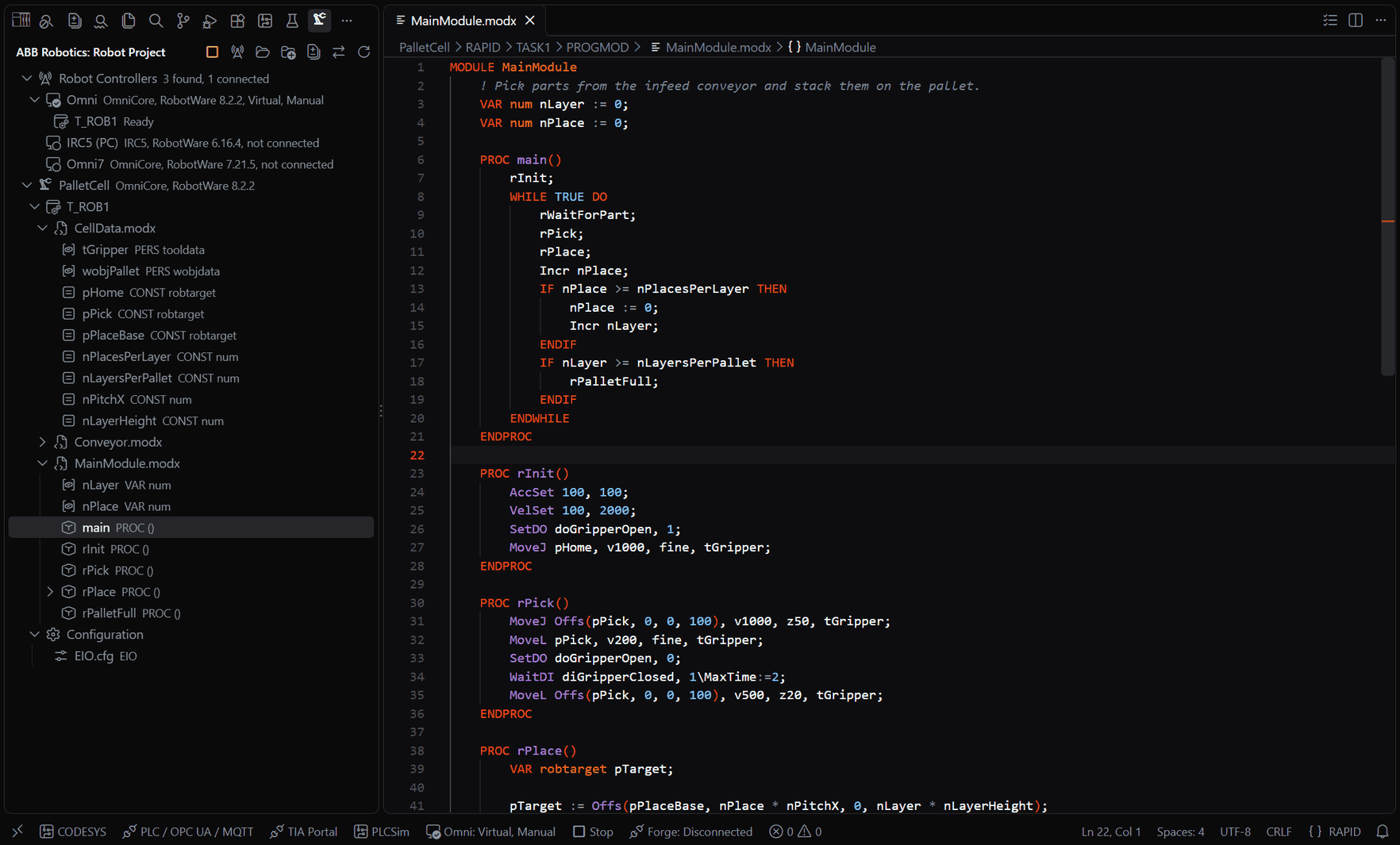
Open the ABB Robotics side bar in the activity bar. The Robot Project view lists every robot project and controller backup of your workspace, with the controller, the tasks, for example T_ROB1, the modules with their routines and data, and the configuration files. Open Robot Project... opens a project or backup from any folder, and New Robot Project... creates an empty project for OmniCore or IRC5 with its main module.
If your program lives in a RobotStudio station, start its virtual controller in RobotStudio, find it with Find Robot Controllers and choose Upload as New Robot Project.... Studio works with robot projects and controller backups, not with the station itself.
RAPID modules open with syntax colors, folding and an outline of their routines and data. While you type, the Problems view lists blocks that are not closed, missing semicolons, names declared twice and module names that differ from the file name.
Step 3: let the AI write the program
Describe what the robot should do:
"Write a pick and place routine for T_ROB1 in MainModule that waits for the start signal."
The AI hands the task to a dedicated RAPID specialist. It reads the robot project, writes and changes modules and configuration files, and checks its work. Every change appears in the editor as a comparison with Keep and Undo. For RAPID modules and configuration files, the file on disk changes exactly when you choose Keep, also with auto save turned on, and a new module gets the file format and encoding of your controller generation.
Step 4: check it on a virtual controller
Connect to the virtual controller: click Find Robot Controllers in the Robot Project view, right-click the controller and choose Connect to Robot Controller. While it is connected, Studio checks the modules of the project on it when you keep a change of the AI, before it saves them. Check Program in the title bar of a RAPID editor checks on demand.
The check loads the modules into the task for a moment and puts the task back exactly as it was; it writes nothing into your files. The errors appear in the Problems view at the line and column the controller names. The controller reports only the first error per task, so the AI fixes it and checks again until the program has no errors. When the controller finds an error in a change you keep, the dialog Errors Found on the Virtual Controller lets you save anyway or keep the change in the editor without writing it.
Step 5: load and start
Save the modules, right-click the project, a task or a module and choose Load to Robot Controller.... Studio loads the modules into their tasks, replaces modules of the same name and sets the program pointer to main. The tasks have to be stopped. The result names the loaded modules and where the program pointer now stands. Set Program Pointer to Routine... sets it to another routine.
Start Robot Program starts the tasks selected on the FlexPendant. The controller has to be in automatic mode with the motors on; Studio never switches the operating mode, the motors or the task selection. The robot moves as soon as the program starts, so make sure that nobody is in its working range. Stop Robot Program stops every program task at once, without asking, from the right-click menu, the title bar of the view or the red Stop button in the status bar.
An OmniCore that stores modules in UTF-8 keeps a loaded .mod module as a .modx file. Studio then names these modules and offers Convert Module, so that your project matches the controller.
At a real controller, you confirm
A real controller needs a network connection, the RobotWare option for PC connections (616-1 PC Interface on an IRC5, 3119-1 RobotStudio Connect on an OmniCore) and a controller user that is allowed to do the action. Before Studio loads, replaces or unloads modules, sets the program pointer, starts the program or restores a backup there, the dialog Confirm Robot Controller Action names the controller, the operating mode, the tasks, the modules and what will happen. Cancel is the default button, and Enter never confirms. Before it first loads, unloads or restores on a real controller, Studio saves a backup of it.
The AI can load, start and back up as well. At a real controller, each of these calls shows a confirmation card in the chat, whatever approval level you set, and loading and starting also open the Studio dialog. Reading, comparing and checking run without a prompt. When a controller needs a sign-in, Studio asks you in its own dialog; the password goes only to the controller and never to the AI.
Keep the controller and the project in step
Back Up Robot Controller saves a backup on the controller and a copy on this computer. Compare with Robot Controller shows what differs between your project and the controller, file by file, and Compare Robot Backups... does the same for two backups, without signatures, time stamps and line endings. Restore Robot Controller from Backup... puts a backup back, the RAPID program, the configuration or both.
Robot and PLC
A robot cell rarely runs without a PLC. Compare Robot Signals with TIA pairs the PROFINET signals of the robot project with the PLC tags of the TIA project, attached in Studio, opened offline or from an export folder, and lists every missing tag, overlap or different byte order. The AI uses the same comparison to write the handshake between robot and PLC on both sides and compares again until nothing is left.
What stays in RobotStudio and at the FlexPendant
Stations, simulations and virtual controllers are created in RobotStudio. The operating mode, the motors, the task selection and External control stay with you at the controller. Studio does not watch the event log or RAPID variables, does not write signals or RAPID data and does not move the robot by hand. Stop Robot Program is no safety function: the emergency stop and the safety of the cell stay with the safety system of the robot. Check a program on a virtual controller before you load it onto a real one, and test it at reduced speed first. The full list is in the manual under What Is Not Supported Yet.
For the AI you choose the model per task, a cloud model with your own key or a local model on your own hardware, as for TIA Portal, CODESYS and OMRON Sysmac Studio.
Which plan you need
ABB Robotics is part of the Pro+ and Enterprise plans, see plans and prices. The 30-day free trial unlocks it. In an existing installation, update to the current version and run the setup again to select the ABB Robotics support component.
Read more on the page AI for ABB RAPID, and find every step in the manual on ABB Robotics, including Checking the Program on a Virtual Controller and The Confirmation at a Real Controller.